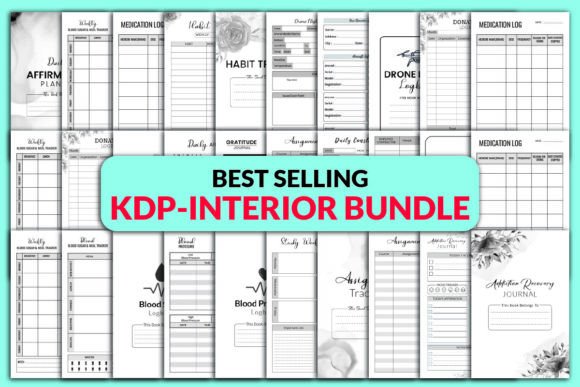
What Makes a Best Selling Planner KDP-Interior Bundle Actually Work for You
You have probably seen the promise: a single download gives you everything you need to publish a professional planner on Amazon KDP. The Best Selling Planner KDP-Interior Bundle often includes a collection of ready-made interior files for niches like habit tracking, blood sugar logs, donation record keeping, or drone flight journals. It sounds like a straightforward shortcut—download, upload, and sell. But many people discover too late that skipping a few critical checks turns convenience into wasted time and poor customer reviews.
The real value of a bundle like this lies not in the number of files, but in how thoughtfully you apply them. Whether you are a first-time publisher or a seasoned seller refreshing your catalog, a few overlooked details can mean the difference between a listing that blends in and one that genuinely earns consistent sales.
Why People Gravitate Toward These Bundles and Misunderstand Them
A Best Selling Planner KDP-Interior Bundle appeals because it removes the technical friction of page setup, margin alignment, and creating clean, repeatable layouts for low-content books. You get high-resolution PNG and JPG files, ready-to-upload PDFs, and often multiple size options like 6 x 9 inches or 8.5 x 11 inches. The inclusion of bleeds and no-bleed versions is another convenience many sellers appreciate. For anyone building a passive income stream on KDP, this kind of resource can shave days off the design process.
However, a common misunderstanding is assuming every file inside is automatically ready for your specific book. "Print ready" does not always mean it matches the exact trim size, bleed requirement, or page count you intend to list. For example, the PDF labeled "120 pages" might be perfect for an Addiction Recovery Assignment Tracker, but if you plan to sell a 100-page version, you must adjust the file before upload. Uploading a 120-page interior when your cover and product page say 100 pages creates an immediate quality dispute with customers. Worse, Amazon’s print review system might flag your book for inconsistencies, delaying your launch.
Another oversight involves forgetting that no-bleed interior files can look starkly different from a bleed version when trimmed. If your cover design bleeds to the edge but the interior does not, the shift in white space can feel amateurish. Checking whether your book needs a bleed interior from the start prevents returns and frustration. Browse the bundle’s included variations carefully; you usually have both options, but picking the right one depends on your cover and paper choice.
Checking Compatibility Before You Upload Saves Hours of Headaches
One of the biggest mistakes is uploading the first PDF you see without opening it in a reader. The PDF might be sized exactly for 8.5 x 11 inches, but your KDP title is set to 6 x 9 inches. When Amazon scales the file to fit, margins shift, page numbers can disappear into the gutter, and decorative elements look squashed. Always confirm the PDF page dimensions match the trim size you selected in your KDP bookshelf. The bundle likely gives you multiple interior sizes—double-check that the file name corresponds to the correct dimensions. A simple way to avoid this: after downloading, open the PDF in Adobe Acrobat and hover over the page size reading. If it says 8.5 x 11 but you need 6 x 9, go back to the appropriate folder in your bundle.
Similarly, pay attention to whether the interior uses a single-page or spreads layout. The bundle mentions a "PDF Single page" option—use that. Some creators accidentally load a two-page spread PDF as a single file, resulting in a tiny unreadable interior on Amazon’s preview. This mistake gets flagged by buyers in reviews and hurts your listing’s conversion rate.
Resolution is another area where assumptions cause damage. The included high-resolution PNG and JPG files are excellent for customizing pages or adding branding before regenerating a PDF. But if you simply wrap a low-quality JPG into a new PDF without verifying DPI (dots per inch), you might get a pixelated print result. KDP requires at least 300 DPI for crisp text and lines. Always check your final exported PDF with a preflight tool or by zooming in closely. A habit tracker with fuzzy checkboxes looks unprofessional and pushes buyers toward competitors.
The Hidden Risk of Using Generic Interiors Without Customization
A Best Selling Planner KDP-Interior Bundle might include popular niches like Daily Affirmation Planner, Blood Pressure Log, or Construction Daily Logbook. That popularity means many sellers are uploading nearly identical interiors. If you do not add any personal touch—like a unique header, a slightly different layout, or an extra section that reflects your target audience’s needs—your book risks being buried. Customers do not penalize you for using templates, but they notice when every listing on a search page looks the same.
Think about the Donation Tracker or Donation Logbook. A useful addition could be a quick reference table for tax categories or an inspirational quote on each page that relates to charitable giving. For the Drone Flight Logbook, integrating a small battery cycle tracker or maintenance checklist sets your version apart. These tweaks take minutes in a basic image editor using the PNG files, yet they make the interior feel more bespoke. Sellers who simply re-upload find themselves in a race to the bottom on price, while those who add thoughtful improvements can justify a higher price point and attract better reviews.
Also remember that the bundle is a digital design asset, not an exclusive product. You need to read the license terms carefully. Most allow commercial use on KDP, but they may restrict selling the bare files or using them on other print-on-demand platforms without modification. Clarifying these terms before you invest time in a full book setup protects you from account issues later.
Common Pitfalls with Bleed, Margins, and KDP’s Trimming Process
Selecting the wrong bleed setting is a frequent error even for experienced publishers. If your interior file includes bleed but your cover does not, the book trim may inadvertently chop off important content near the edge. Conversely, a no-bleed interior placed in a book with a bleed-enabled trim size leaves awkward white borders after cutting. The bundle’s inclusion of both bleed and no-bleed versions gives you flexibility, but you must decide early which one matches your book’s physical specifications. KDP’s trim guidelines explain the difference clearly: no-bleed interiors have a safe margin of at least 0.375 inches from the edge; bleed interiors extend any background color or image 0.125 inches beyond the trim line. Open your chosen PDF and mentally check if page numbers, headings, or decorative borders fall inside that safe zone. If elements are too close, adjust the file before finalizing.
Another subtle problem happens when you mix and match pages from different interior designs. For instance, pulling a Blood Sugar log page from one file and inserting it into a general health planner created from the bundle’s Blood Pressure Log might cause formatting inconsistency—fonts, line spacing, or date fields looking out of place. Consistency within a single book influences perceived quality. If you repurpose pages, standardize the text style and table structure across the entire document.
What to Check Before You Hit Publish
Smart publishers treat any KDP interior bundle as a starting point, not a finished product. Before uploading, verify these points: page count exactly matches your product listing, PDF dimensions align with the selected trim size, all pages are in the correct order, no blank pages appear where they shouldn’t, and the file includes no hidden layers or transparent objects that could print incorrectly. Also test print a few pages on a home printer if possible; seeing a physical page reveals margin creep and contrast issues that screens hide. Check that your Habit Tracker grid lines are not too thin to reproduce well—some printers lose fine lines, so thickening them slightly can improve durability.
Pay attention to the inside margin, or gutter. KDP’s preview tool highlights potential cut-off, but it is safer to ensure no text or essential elements fall within 0.25 inches of the binding edge for books over 150 pages. Even 120-page books can slightly vary. The bundle’s creators likely designed with proper margins, but if you resize pages or move elements, recheck that spacing.
Better Approaches That Protect Your Time and Reviews
Instead of rushing a new listing in one afternoon, set aside a deliberate review hour. Go through each file type in the Best Selling Planner KDP-Interior Bundle and decide which best serves your audience. For the Daily Affirmation Planner, consider whether you want a simple date and lines layout or a more structured design with morning and evening prompts. Adapt the high-resolution PNG pages to include your own copyright notice and a short intro page that explains how to use the planner—this small step builds trust. Add a dedicated page for a welcome message that aligns with your author brand, and suddenly the book feels less generic.
When comparing similar bundles, prioritize those that offer layered or editable files so you can change fonts and colors without starting from scratch. If the bundle only provides flattened PDFs and one-off PNGs, your options for customization shrink. However, even flat PNGs can be modified with a solid workflow: open in a graphic tool, overlay text, re-export at 300 DPI, and compile into a new PDF. Ensure the final PDF is flat and vector-crisp to avoid font embedding issues.
For technical books like the Construction Daily Logbook, test the table structure with real data notes. Do the columns provide enough space for a typical entry? If a supervisor needs to record weather, task progress, and incident notes, cramped cells become a frustration point that leads to negative feedback. Simple usability testing—filling out a sample page yourself—reveals these nuanced flaws early.
Moving Forward With Confidence
The Best Selling Planner KDP-Interior Bundle offers a strong foundation, especially with its inclusion of popular niche interiors and multiple file formats. Yet the gap between a downloadable file and a well-reviewed product sits in the small decisions: confirming trim size, picking the correct bleed setting, personalizing the design, and doing a thorough pre-upload check. Treat the bundle as high-quality raw material, and invest a little extra effort to tailor each interior to the specific needs of your customers. That approach not only helps you avoid common KDP mistakes but also makes your listing stand out naturally—without hype or shortcuts—giving you a much better chance of building a sustainable publishing business.